

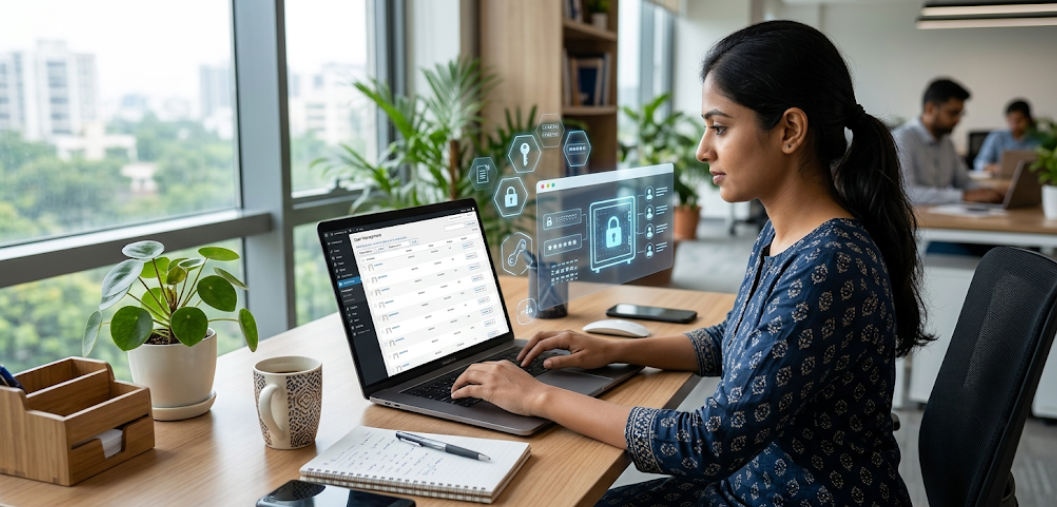
Your business website is more than a digital presence. It may contain customer enquiries, business information, website content, user accounts, and important integrations. If your WordPress website is compromised, the consequences can extend beyond technical problems to include lost leads, damaged reputation, and business disruption.
WordPress is a popular content management system because it is flexible and easy to use. However, website security requires more than installing a security plugin. Outdated software, weak passwords, unsafe plugins, incorrect permissions, and poor backup practices can all increase the risk of an attack.
The good news is that many common security risks can be reduced through practical precautions and regular maintenance.
In this guide, we will explain how to secure a WordPress website, protect business data, reduce common vulnerabilities, and create a security routine that helps keep your website safe.
1. Understand the Importance of WordPress Website Security
Website security is important for businesses of every size. Small business websites can also be targeted by automated attacks, malicious bots, and attempts to exploit outdated software.
Attackers may try to gain unauthorized access, inject malicious code, redirect visitors to unsafe websites, steal information, or misuse the website to send spam.
A security incident can affect several areas of your business:
- Customer trust: Visitors may avoid a website that displays security warnings.
- Business continuity: A compromised website may become unavailable.
- Search visibility: Malware or harmful redirects can negatively affect how visitors and search engines interact with your website.
- Data protection: Personal information submitted through forms may be exposed.
- Recovery costs: Cleaning a compromised website can require technical expertise and time.
- Brand reputation: Customers may lose confidence in your business.
Website security should therefore be treated as an ongoing business responsibility, not a one-time technical setup.
A secure website helps protect your online presence and provides visitors with a more dependable experience.
2. Keep WordPress Core, Themes, and Plugins Updated
Outdated WordPress software is one of the common sources of website security risk. Updates may include security fixes, bug fixes, compatibility improvements, and other important changes.
WordPress core, themes, and plugins all need attention. A website may use an updated WordPress installation but still remain vulnerable because an installed plugin has not been maintained.
Follow these update practices:
- Keep WordPress core updated.
- Update active themes regularly.
- Update plugins from trusted sources.
- Review update information before applying major changes.
- Remove plugins that are no longer required.
- Delete unused themes where appropriate.
- Test important functionality after updates.
- Create a backup before major updates.
For business-critical websites, consider testing updates on a staging environment before applying them to the live website.
Avoid delaying security updates indefinitely. At the same time, do not update a complex website blindly without considering compatibility and recovery options.
WordPress provides official guidance on maintaining and securing installations: https://developer.wordpress.org/advanced-administration/security/
3. Use Strong Passwords and Secure Administrator Accounts
Weak passwords can make it easier for attackers to gain unauthorized access to WordPress accounts. Administrator accounts deserve particular attention because they can control website settings, users, themes, and plugins.
Avoid predictable passwords such as business names, birthdays, common phrases, or simple number sequences.
A strong account security approach includes:
- Use long, unique passwords for every administrator account.
- Store passwords in a reputable password manager.
- Enable two-factor authentication where possible.
- Avoid sharing administrator credentials with multiple people.
- Remove accounts belonging to former employees or contractors.
- Assign users only the permissions they need.
- Review administrator accounts periodically.
Two-factor authentication adds another layer of protection by requiring an additional verification step beyond the password.
If multiple team members manage your website, create individual accounts for each person. This makes it easier to manage access and identify which account performed a particular action.
Avoid using a shared administrator login for everyday content editing. A lower-permission role is usually more appropriate for users who only need to publish or update content.

4. Install a Reliable WordPress Security Plugin
A security plugin can help monitor your website, detect suspicious activity, and provide additional protection against common threats. However, a plugin should support your security strategy rather than replace it.
Different security plugins provide different features. Some focus on malware scanning, while others offer firewall protection, login security, activity monitoring, or file integrity checks.
When choosing a security plugin, consider:
- Whether it is actively maintained.
- Whether it has a reliable update history.
- Whether its features suit your website.
- Whether it provides useful security alerts.
- Whether it works with your hosting environment.
- Whether it creates unnecessary performance overhead.
- Whether its documentation explains how to configure it.
Avoid installing several security plugins that perform the same functions. Overlapping firewalls, login protection, or scanning features may create conflicts.
A security plugin can help detect issues, but it cannot guarantee that your website will never be compromised. Strong access controls, updates, backups, and secure hosting remain essential.
5. Protect Your Website with a Web Application Firewall
A Web Application Firewall (WAF) can help filter and monitor incoming HTTP traffic before it reaches your website. Depending on its configuration, it may block suspicious requests and reduce exposure to certain common web attacks.
A firewall can be implemented at different levels, including:
- A cloud-based security service.
- A hosting provider’s web application firewall.
- A security plugin with firewall functionality.
- Server-level security rules.
A WAF may help reduce malicious traffic, but it is not a complete security solution. It cannot replace software updates, secure passwords, access control, or reliable backups.
When configuring a firewall, make sure legitimate visitors can still access important website functions. Overly strict rules may block contact form submissions, checkout processes, or other valid requests.
If your website uses a CDN or cloud security service, review its security settings and ensure that the configuration matches your hosting environment.
6. Create Reliable Backups and Test Restoration
Backups are essential because security incidents can happen even when preventive measures are in place. A reliable backup allows you to restore your website after malware, accidental deletion, failed updates, or hosting problems.
A complete WordPress backup should include:
- WordPress website files.
- Themes and plugins.
- Uploaded media files.
- The WordPress database.
- Relevant configuration files.
- Any additional data required by your website.
Your backup frequency should depend on how often your website changes.
For example, an e-commerce website receiving orders throughout the day may require frequent backups, while a small informational website may have a different schedule.
A strong backup strategy should include:
- Automated backups.
- Off-site storage.
- Backups before major changes.
- A suitable backup retention period.
- Access protection for backup files.
- Regular restoration tests.
Do not store every backup only on the same server as your live website. If the server is compromised or fails, those backups may also become unavailable.
A backup is only dependable when you know it can be restored. Test the process in a staging environment whenever possible.
7. Use Secure Hosting and Enable HTTPS
Your hosting environment is an important part of WordPress security. A reliable hosting provider can offer server-level protection, security monitoring, backups, and support when technical issues occur.
When choosing or reviewing hosting, consider:
- Regular server software updates.
- Secure account access.
- Malware detection and incident response.
- Backup availability and restoration support.
- PHP and database maintenance.
- Isolation between customer accounts.
- SSL/TLS certificate support.
- Clear security documentation.
HTTPS encrypts information exchanged between a visitor’s browser and your website. It helps protect data such as login credentials and form submissions while they travel across the network.
Make sure your website uses a valid SSL/TLS certificate and that important pages load over HTTPS.
However, HTTPS does not mean a website is completely secure. It protects data in transit, but it does not prevent every form of malware, unauthorized access, or vulnerable plugin exploitation.
If your website displays mixed-content warnings, review the resources being loaded over insecure HTTP and correct them where appropriate.
8. Remove Unused Plugins, Themes, and User Accounts
Every installed component can require maintenance and may introduce additional security considerations. Unused plugins and themes should be reviewed rather than left indefinitely on the website.
The same applies to user accounts. Former employees, contractors, or temporary developers may no longer need access.
A periodic cleanup should include:
- Remove plugins that are no longer used.
- Delete unused themes where appropriate.
- Review administrator and editor accounts.
- Remove accounts that no longer need access.
- Check plugin and theme sources.
- Review permissions for active users.
- Remove unnecessary integrations.
- Confirm that essential features still work after cleanup.
Do not delete a plugin simply because it is not visible on the homepage. It may support a form, custom post type, or another important feature.
Before removing a plugin, confirm that the website no longer depends on it. If you are unsure, test the change on a staging site.
A smaller, well-maintained collection of components can make website administration easier and reduce unnecessary complexity.
9. Secure WordPress Login and Limit Unauthorized Access
The WordPress login page is an important access point. Attackers may use automated tools to attempt password guessing or exploit weak account security.
You can reduce login-related risks through several practical measures.
- Enable two-factor authentication.
- Use strong passwords.
- Limit repeated failed login attempts when appropriate.
- Monitor suspicious login activity.
- Remove unused accounts.
- Use a secure administrator email address.
- Avoid sharing login credentials.
- Consider additional access restrictions for administrators.
Some websites change the default login URL. This may reduce unwanted login attempts in certain situations, but it should not be treated as a substitute for proper authentication and access control.
Do not rely on hiding the login page as your main security measure. Strong credentials, multi-factor authentication, software updates, and monitoring are more important.
If you manage a business website with several administrators, review who has access regularly and remove permissions when they are no longer needed.
10. Monitor Malware, Suspicious Activity, and Security Alerts
Regular monitoring helps you identify possible security problems before they become more serious. A compromised website may show obvious signs, but some incidents can remain hidden for a period of time.
Watch for unusual behavior such as:
- Unexpected administrator accounts.
- Unknown files or code changes.
- Unfamiliar redirects.
- Suspicious login activity.
- Unexpected website content.
- Unusual outbound links.
- Security warnings in browsers or search results.
- Sudden changes in website behavior.
Use a suitable monitoring process that includes security scans, activity logs, and alerts.
If you discover a possible compromise, avoid immediately deleting files without understanding the problem. You may remove evidence needed to identify the cause or accidentally damage legitimate website functionality.
A more structured response includes:
- Preserve available backups and relevant logs.
- Restrict suspicious accounts or access where appropriate.
- Identify the likely entry point.
- Scan files and database content.
- Remove malicious code safely.
- Update vulnerable software.
- Reset affected credentials.
- Review the website after recovery.
For serious incidents, consider involving a qualified WordPress security professional or your hosting provider.
Conclusion: Make WordPress Security an Ongoing Priority
Securing a WordPress website requires a combination of good configuration, regular maintenance, and careful access management. No single plugin or setting can guarantee complete protection, but a structured approach can reduce many common risks.
Keep WordPress core, themes, and plugins updated. Use strong passwords and two-factor authentication. Create reliable backups, choose secure hosting, monitor suspicious activity, and remove unnecessary components.
For business owners, website security is an important part of protecting customer trust and maintaining a reliable online presence.
By following these practical steps and reviewing your security regularly, you can make your WordPress website more resilient and better prepared to handle common online threats.
