
WordPress is one of the most popular platforms for building business websites, blogs, and online stores. It offers flexibility, thousands of plugins, customizable themes, and powerful website management features. However, like any website platform, WordPress can sometimes experience technical problems that affect its functionality, performance, and user experience.
A website error can appear unexpectedly. Your homepage may stop loading, the WordPress dashboard may become inaccessible, a contact form may stop working, or a plugin update may cause a critical error. For business owners, these problems can result in missed enquiries, interrupted sales, and reduced customer confidence.
Understanding Common WordPress Errors can help you identify problems quickly and take the right steps to resolve them. You do not always need advanced technical knowledge to troubleshoot basic issues, but it is important to follow a careful process before changing website files or database settings.
In this guide, we will explore common WordPress errors, explain why they happen, and provide practical troubleshooting steps to help business owners maintain a stable and reliable website.
1. Why Do WordPress Errors Occur?
WordPress websites depend on several components working together, including the WordPress core software, themes, plugins, hosting server, database, and PHP environment. If one component becomes incompatible, outdated, incorrectly configured, or unavailable, your website may display an error.
Sometimes, a problem appears immediately after installing a plugin or updating a theme. In other situations, errors develop gradually because of limited hosting resources, outdated software, security issues, or database problems.
Common reasons behind WordPress errors
- Plugin conflicts: Two or more plugins may use incompatible functions or scripts, causing certain website features to stop working.
- Theme compatibility issues: An outdated or poorly maintained theme may conflict with the latest WordPress version or installed plugins.
- PHP errors: Unsupported PHP versions, coding mistakes, or exhausted server resources can interrupt website functionality.
- Database connection problems: Incorrect database credentials or an unavailable database server can prevent WordPress from loading.
- Insufficient hosting resources: Limited memory, storage, or server processing capacity can affect website performance and reliability.
- Incorrect file permissions: Improper permissions can prevent WordPress from accessing or modifying required files.
- Failed updates: Interrupted WordPress, theme, or plugin updates may leave website components incomplete.
- Security incidents: Malware, unauthorized modifications, or compromised files can create unexpected website errors.
For example, if your website stops working immediately after installing a new plugin, the plugin may be incompatible with your current theme or another installed extension.
Before attempting a fix, identify what changed shortly before the problem appeared. This information can help you narrow down the cause and avoid unnecessary modifications.
2. How to Fix the WordPress White Screen of Death
The WordPress White Screen of Death (WSOD) is an issue where a website displays a completely blank screen instead of loading its normal content. In some cases, the WordPress dashboard may also become inaccessible.
This problem can be particularly confusing because the browser may show no useful error message.
Why does the white screen appear?
- A recently installed plugin may contain incompatible code.
- A theme update may introduce a PHP error.
- Your website may exceed its available PHP memory limit.
- A custom code snippet may interrupt the WordPress loading process.
- An outdated or incompatible PHP environment may cause a fatal error.
Steps to troubleshoot the white screen
Step 1: Check your website in another browser
Open the website in a different browser or private browsing window. This helps rule out certain browser caching problems.
Step 2: Disable recently installed plugins
If you can access the WordPress dashboard, open Plugins and deactivate the plugin that was installed or updated shortly before the problem appeared.
If the dashboard is unavailable, use your hosting file manager or FTP access to rename the relevant plugin folder inside:
wp-content/plugins/
Renaming the folder temporarily prevents WordPress from loading that plugin.
Step 3: Switch to a default WordPress theme
If plugin troubleshooting does not help, temporarily activate an available default WordPress theme. If the website starts working, your previous theme may be involved.
Step 4: Review the PHP error logs
Check your hosting control panel for PHP error logs. These may identify the exact file or function causing the failure.
Step 5: Enable debugging carefully
WordPress provides debugging settings that can help developers identify PHP errors. If you use debugging on a live website, avoid displaying error messages publicly. Store them in a protected log instead.
If these steps do not resolve the issue, contact your hosting provider or WordPress developer before making additional changes.
3. How to Fix the WordPress Error Establishing a Database Connection
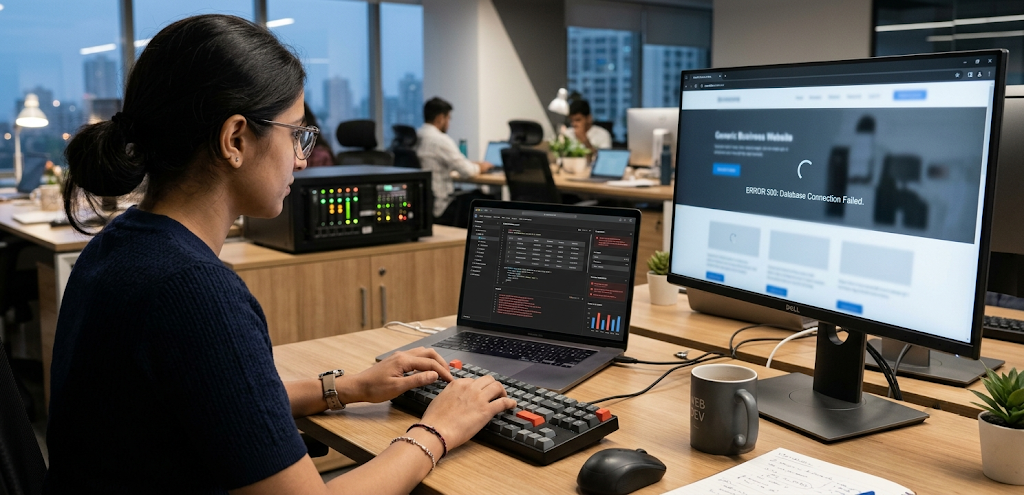
The database connection error occurs when WordPress cannot communicate with its database server. Since the database stores important website information, including posts, pages, settings, and user records, this error can prevent your website from loading.
Visitors may see a message indicating that the website is experiencing a database connection problem.
Common causes of database connection errors
- Incorrect database name in the WordPress configuration file.
- Incorrect database username or password.
- Database server temporarily unavailable.
- Database server overload or hosting resource limitations.
- Corrupted database tables.
- Incorrect database host information.
How to troubleshoot the database connection
1. Check your hosting server status
Log in to your hosting account and check whether the database service is operational. If the server is experiencing an outage, contact hosting support.
2. Review the wp-config.php file
WordPress stores database connection details in the wp-config.php file. Check the following configuration values:
DB_NAMEDB_USERDB_PASSWORDDB_HOST
Compare these details with the database information provided by your hosting company.
Do not change these values unless you have verified the correct information.
3. Check database access
If your hosting provider offers phpMyAdmin or another database management tool, confirm that the database is accessible using the correct account.
4. Review database integrity
If the database appears damaged, consult your hosting provider or developer about checking and repairing it. Create a backup before attempting any repair operation.
5. Contact your hosting provider
If the database credentials are correct but the error continues, the problem may be related to server configuration, database availability, or hosting limitations.
Avoid repeatedly changing database credentials without identifying the actual cause.
4. How to Resolve the 500 Internal Server Error
A 500 Internal Server Error indicates that the server encountered an unexpected condition and could not complete the request. It is a general server-side error, meaning the message itself does not identify the exact cause.
This error may affect the entire website or only specific pages.
Possible causes of a 500 Internal Server Error
- Incorrect
.htaccessconfiguration. - Plugin or theme conflicts.
- PHP fatal errors.
- Exhausted PHP memory limits.
- Incorrect server settings.
- Corrupted website files.
- Hosting server configuration problems.
Practical troubleshooting steps
Step 1: Create a backup
Before modifying configuration files, create a complete backup of your website files and database.
Step 2: Check the server error logs
Your hosting control panel may provide an error log that identifies the file or process responsible for the problem.
Step 3: Test the .htaccess file
A damaged or incorrectly configured .htaccess file can cause server errors.
If you use Apache and have verified that the problem is related to this file, rename it temporarily to something like .htaccess-backup. If the website loads again, you can investigate the incorrect rule and regenerate standard WordPress rewrite rules through the Permalinks settings.
Do not replace custom server rules without reviewing them first.
Step 4: Deactivate plugins
Temporarily deactivate recently updated or installed plugins to identify possible conflicts.
Step 5: Contact hosting support
If the problem continues, your hosting provider may need to investigate PHP processes, server configuration, or resource limits.
Avoid assuming that every 500 error is caused by WordPress itself. The underlying issue may exist at the hosting or server level.
5. How to Fix the WordPress 404 Page Not Found Error
A 404 error appears when someone tries to access a webpage that the server cannot find at the requested address.
For example, a visitor may click a link to an older blog article or service page that has been moved or deleted. Instead of displaying the expected content, the website shows a 404 page.
A few broken links may seem minor, but multiple 404 errors can negatively affect navigation and create a frustrating experience for visitors.
Common reasons for WordPress 404 errors
- A page or post has been deleted.
- The website URL structure has changed.
- Permalink settings have been modified.
- Internal links point to incorrect addresses.
- A migration has changed page URLs.
- Server rewrite rules are incorrectly configured.
How to fix WordPress 404 errors
1. Refresh your permalink settings
Go to WordPress Dashboard → Settings → Permalinks.
Without changing your existing structure, click Save Changes. WordPress may regenerate its rewrite rules and resolve certain permalink-related 404 errors.
2. Check the page URL
Confirm that the page or post still exists and that its current permalink is correct.
3. Update broken internal links
Review menus, buttons, blog links, and other website navigation elements. Replace incorrect links with valid destinations.
4. Create redirects for changed URLs
If a page has permanently moved, configure an appropriate 301 redirect to its relevant replacement. This helps visitors and search engines reach the correct page.
5. Review server rewrite configuration
If permalink issues continue, ask your hosting provider or developer to check the server rewrite configuration.
Why fixing 404 errors matters
- Visitors can reach the information they expect.
- Internal navigation becomes more reliable.
- Important service pages remain accessible.
- Unnecessary broken-link experiences are reduced.
- Relevant redirects can help preserve the value of changed URLs.
Do not redirect every missing URL to the homepage. Redirect users to a relevant replacement page when one exists; otherwise, a genuine 404 response may be appropriate.
6. How to Fix WordPress Memory Limit Errors
WordPress uses PHP memory to run themes, plugins, scripts, and website processes. If a website requires more memory than the hosting environment allows, certain operations may fail.
You may encounter a memory-related error while editing a page, uploading media, running a plugin, or accessing the WordPress dashboard.
Websites using complex page builders, e-commerce features, or resource-intensive plugins may require careful hosting configuration.
Common reasons for memory limit problems
- Too many resource-intensive plugins.
- Large page-builder layouts.
- Inefficient theme code.
- Heavy image-processing operations.
- Limited PHP memory allocation.
- Insufficient hosting resources.
Steps to resolve memory limit errors
- Check the current memory limit: Review the PHP configuration through your hosting panel or WordPress Site Health information.
- Review installed plugins: Identify unnecessary or resource-intensive plugins and remove those that are no longer needed.
- Check PHP configuration: Ask your hosting provider whether the PHP memory limit can be increased.
- Review page-builder content: Large layouts, complex widgets, and unnecessary scripts may increase resource usage.
- Upgrade hosting when necessary: If the website regularly exceeds available resources, a more suitable hosting plan may be required.
- Monitor resource usage: Review CPU, memory, and PHP process limits through your hosting dashboard.
Can you increase the WordPress memory limit?
In some hosting environments, developers can adjust PHP memory settings through supported configuration methods. However, changing a WordPress memory constant does not necessarily override the server’s actual PHP memory limit.
The available memory depends on your hosting configuration and plan.
Before changing configuration files, create a backup and confirm the supported settings with your hosting provider.
7. How to Fix Plugin and Theme Compatibility Errors
Plugins and themes make WordPress flexible, but compatibility problems can occur when different components do not work correctly together.
A plugin may stop functioning after an update, a theme may break a page layout, or two extensions may interfere with the same website functionality.
These issues are among the Common WordPress Errors business owners may encounter while maintaining their websites.
Why do plugin and theme conflicts happen?
- A plugin has not been updated to support your current WordPress version.
- Two plugins use conflicting scripts or functions.
- A theme contains outdated code.
- A custom modification conflicts with a plugin update.
- A plugin requires a different PHP environment.
- An update introduces a new bug or compatibility issue.
How to identify and resolve compatibility problems
1. Identify recent changes
Check which plugins, themes, or custom code snippets were updated immediately before the problem started.
2. Create a backup
Always create a current backup before deactivating components or changing your website configuration.
3. Deactivate plugins one at a time
If the WordPress dashboard is accessible, deactivate plugins individually and check whether the issue disappears.
For a more systematic test, use the official WordPress troubleshooting approach or a staging environment.
4. Switch to a default theme temporarily
If the issue remains after checking plugins, test the website with a default WordPress theme. This can help determine whether your active theme is involved.
5. Check compatibility information
Review the plugin or theme documentation, support history, and compatibility details before reinstalling or updating it.
6. Contact the developer
If a premium plugin or custom theme is responsible, contact its developer or your WordPress maintenance team for a suitable fix.
Avoid unnecessary plugin installations
Installing several plugins that provide the same functionality can increase maintenance complexity and create additional compatibility risks.
Choose reliable, maintained extensions that meet your actual business requirements.